
Published by Dhruv — SEO Consultant for Agencies & Businesses
TL;DR
Managing multiple client projects across Google Sheets was eating hours every week. So I built three Google Apps Script automations that handle sheet creation, team permissions, hyperlinks, and project syncing — all from a single button click. What used to take 23 minutes per project now takes under 60 seconds. This post walks you through what I built, why I built it, and the exact bug I had to fix along the way.
Running an SEO operation across multiple agencies means a lot of moving parts. Clients, trackers, handoffs, status updates — the backend work can quietly eat your week if you let it.
For a while, I let it.
Every time I onboarded a new client project, the routine looked something like this: open a blank sheet, copy the template, rename it, share it with the right people, paste the hyperlink in the right place, update the main tracker, and then do the same thing again in the agency sheet. Rinse and repeat.
On a good week, that meant doing this three or four times. On a busy week, more. Each round took roughly 20 to 25 minutes. None of that time was billable. None of it was strategic. It was just friction — repetitive, error-prone, and completely unnecessary.
So I fixed it.
The Setup: What the Project System Looked Like
Before getting into the automations, here is some context on the structure I was working with.
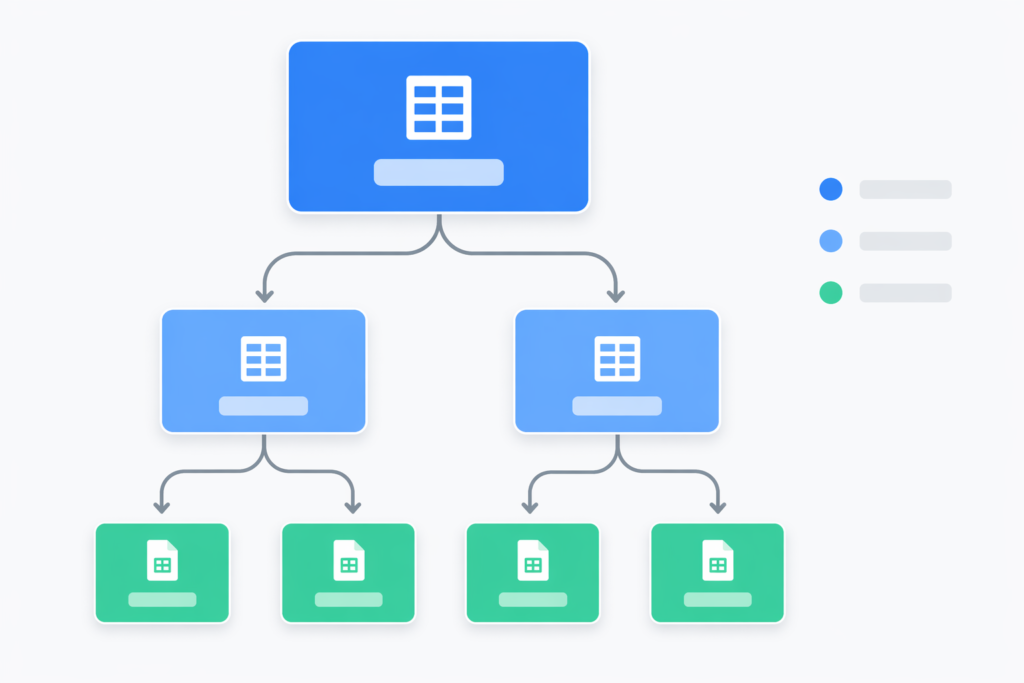
I manage projects across multiple sheets — a Main Project Sheet that acts as a central hub, individual agency sheets for each team lead, and per-project Master Tracker sheets that hold detailed tracking data. Each sheet has two tabs: Running (active projects) and Suspended (paused or completed).
Every row in every sheet follows the same four-column structure:
- Column A: Website URL
- Column B: Start Date
- Column C: Client Name
- Column D: Master Tracker (a hyperlink to the project-specific sheet)
The goal was simple: when a new project gets added to the Running tab of an agency sheet, one button click should handle everything else automatically.
The Problem That Made Me Build This
The manual workflow had a few specific failure points that kept coming up.
Inconsistent hyperlinks. When you’re copying and pasting URLs manually, mistakes happen. A wrong link here, a missed update there, and suddenly someone on the team is looking at the wrong project sheet.
Permissions chaos. Different projects needed to be shared with different people. Ryan’s projects go to Ryan, Sam, and me. Alex’s projects go to Alex and me. Self projects stay with me. Managing that manually left room for access gaps that only surfaced at the worst times.
Sync failures. The Main Project Sheet and the agency sheets need to stay in sync. When you’re updating both manually, they drift apart. That creates confusion about what is active, what is suspended, and where the latest data lives.
Time. The biggest problem was simply time. Twenty-three minutes per project adds up fast. Across a year, that is easily 20 hours or more of setup work that produces zero client value.
What I Built: Three Automations, One Logic
I wrote three Google Apps Script automations — one for Alex’s projects, one for Ryan’s projects (NovaCare Digital), and one for my personal projects. They all follow the same core logic, with variations based on who gets access.
Automation 1: Alex’s Projects
This handles all client projects assigned to Alex. When triggered, it scans the Running tab for any row that has a website URL, start date, and client name but is missing a Master Tracker link. For each of those rows, it:
- Copies the template sheet and renames it using the client’s domain name
- Shares the new sheet with Alex and me
- Writes a working hyperlink formula into column D on that row
- Syncs the project data to the Main Project Sheet
- Handles suspended projects when needed
Trigger: clicking 🚀 Automation → Add Master Tracker Link from the custom menu.
Automation 2: Ryan’s Projects
Same structure, slightly different team. Ryan’s projects (under NovaCare Digital) involve three people — Sam, Ryan, and me — so the sharing step covers all three. The suspended project workflow also moves rows from the Running tab to the Suspended tab, then cleans up the corresponding entry on the Main Sheet.
This one was the most complex to build because keeping three sheets in sync (Ryan’s agency sheet, the Main Sheet, and the project-specific tracker) required careful sequencing to avoid overwriting data.
Automation 3: Self Projects
The simplest of the three. This one only processes rows where the client name includes “Self,” so personal and internal projects stay separated from client work. No team sharing. No agency sheet sync. Just a clean Master Tracker sheet created for my own reference.
Trigger: 🚀 Automation → Create Self Project Sheets
The Bug That Took Me a While to Figure Out
Here is the part I want to dwell on, because it is the kind of thing that can waste hours if you do not know what to look for.
When I first tested the automations, the hyperlinks were not working. The formula bar was showing HYPERLINK(...) instead of =HYPERLINK(...). The cells displayed as plain text. Clicking them did nothing.
At first I assumed it was a formula syntax issue. I checked the formula. It was fine. I ran the script again. Same result. The formula was being stored as text, not executed as a formula.
After some digging, I found the cause.
The original broken approach inserted a new row into the sheet first, then tried to immediately write a formula into that new row:
// ❌ Broken
sheet.insertRows(2, 1);
sheet.getRange(2, 4).setFormula(`=HYPERLINK("${newSheetUrl}","Master Tracker")`);
The problem is that Google Sheets’ API handles row insertions asynchronously. By the time setFormula() runs, the sheet structure has not fully settled. The formula gets interpreted as a text value instead of a formula, and the = sign effectively disappears.

The fix was straightforward once I understood the cause. Instead of inserting a row and writing to it, I wrote directly to the existing row where the data already lived. No insertion. No timing conflict. The formula executed correctly every time.
// ✅ Fixed
sheet.getRange(rowIndex, 4).setFormula(`=HYPERLINK("${newSheetUrl}","Master Tracker")`);
The lesson: if you are writing formulas in Apps Script, always set them on stable, pre-existing rows. Row insertion operations create a timing gap that can silently break formula execution.
The Result: Before vs. After
Here is what the workflow looked like before and after:
Before (manual):
- Create and name the sheet: ~5 minutes
- Copy the template over: ~2 minutes
- Configure sharing for the right people: ~3 minutes
- Add hyperlinks to two sheets: ~5 minutes
- Enter project data by hand: ~5 minutes
- Move tabs if the project changes status: ~3 minutes
- Total: ~23 minutes per project
After (automated):
- Add three data points to the sheet (URL, date, client name): 30 seconds
- Click the automation button: 10 seconds
- Wait for everything else to run: 20 seconds
- Total: ~60 seconds per project
That is roughly a 95% reduction in setup time. More importantly, it is error-free. The right people always get access. The hyperlinks always work. The Main Sheet always stays in sync.

What This Taught Me About Operations
I want to be direct about something: the automation itself is not the point.
The point is that repetitive backend tasks are a silent tax on every agency and freelance operation. They rarely feel urgent. They do not show up in client reports. But they accumulate. And over time, they add up to real hours that could have gone toward strategy, outreach, or simply not working on weekends.
If you are running client projects out of Google Sheets and doing any part of the setup manually, you are probably spending more time on it than you realise. A bit of Apps Script — which is just JavaScript, and which requires no external tools or subscriptions — can handle most of that automatically.
The barrier is usually not technical. It is just that nobody has sat down to build it yet.
Want to Talk Through Your Setup?
If you are managing client SEO projects and the operational side is starting to feel heavy, I am happy to talk through it. I work with agencies, founders, and business owners on both the SEO strategy side and the systems that support it.
Read more articles like this on the blog →
If you want to talk about your specific situation — whether that is project management, white-label SEO, or organic growth strategy — book a 30-minute call. No pitch, no packages. Just a conversation about what is actually worth doing.
Dhruv is an SEO consultant working with agencies, founders, and business owners. 500+ projects. 6+ years. No fluff.

Dhruv The SEO Guy
I do SEO for agencies, founders, and business owners. No fixed packages. No fluff. Just technical, revenue-focused strategies that scale your organic presence securely.
Ready to dominate search?
Stop reading about algorithms and start ranking. Book a quick 1-on-1 strategy call below.
Book a Strategy Call →