
How to Use Your Competitors’ Blogs to Drive Organic Traffic to Your Website
The Answer Is Already Sitting in Front of You
Most businesses spend hours trying to figure out what to write about. Brainstorming sessions, internal discussions, content calendars built on gut instinct. The result is usually a list of topics that feel right but have no data behind them.
Here is the thing nobody points out early enough: if you have competitors who are actively blogging and getting organic traffic, they have already solved this problem for you. Every blog post they rank for is proof that someone in your shared audience searched for that topic and Google decided it was worth showing. That is not a guess. That is confirmed demand.
You do not have to start from scratch. You just have to know how to read the data that is already out there.
Why This Approach Works
When a competitor blog post ranks in Google’s top ten results for a keyword, it means Google has evaluated the content, compared it against everything else available, and decided it is relevant and trustworthy enough to show to real searchers. The demand for that topic is proven. The keyword is real. People are clicking.
If you create content on the same topic that is more thorough, more current, better structured, or simply more useful to the reader, you are competing directly for that same position. You are not experimenting with topics that might work. You are targeting searches that are already working for someone in your space.
That is a fundamentally different starting point than writing about whatever seems interesting this month.
What You Need Before You Start
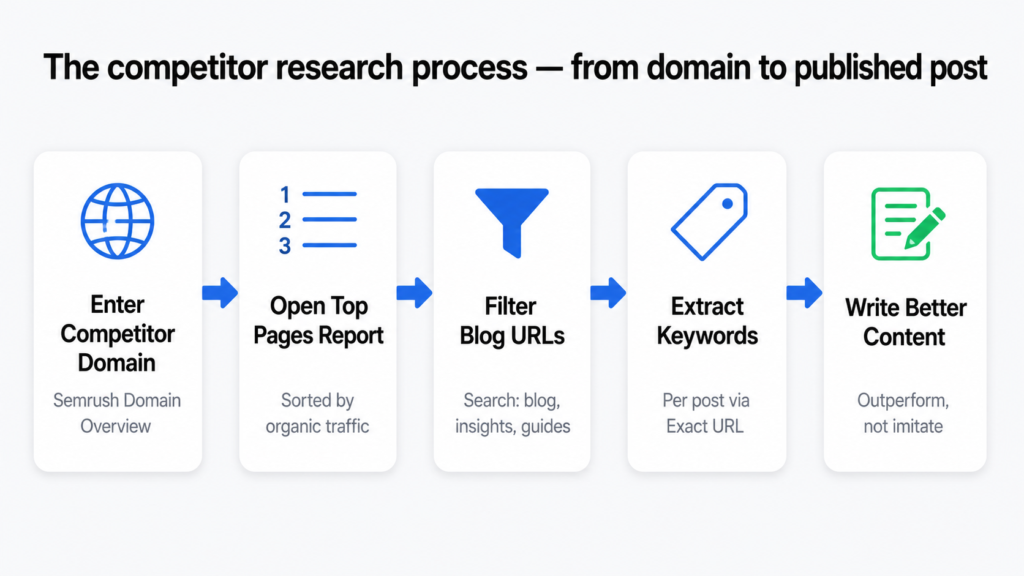
This process uses Semrush. Specifically the Domain Overview feature and the Top Pages report. These two features together give you a complete picture of what any competitor’s blog is ranking for and how much traffic each post is bringing in.
You will also need a list of two to three competitors whose blogs you want to analyse. They do not need to be your direct business competitors. They just need to be websites in your niche that are actively publishing blog content and getting search traffic from it.
If none of your direct competitors have an active blog with measurable traffic, this approach has limited value for your situation. In that case, the buyer persona strategy is a better fit. I cover that in the next post in this series.
The Full Process, Step by Step
Step 1 — Open Semrush and run a Domain Overview
Go to Semrush and open the Domain Overview tool. Type in your competitor’s domain URL. Select Root Domain from the dropdown so the analysis covers their entire website, not just one page. Set the target location to match your audience’s country. Click Search.
Step 2 — Go to the Top Pages report
In the left sidebar, click on Top Pages. This report shows every page on the competitor’s domain that is currently ranking in Google’s top 100 results, sorted by estimated monthly organic traffic from highest to lowest. This is the most valuable report in Semrush for content strategy work.
Step 3 — Filter for blog content only
Use the Filter by URL field at the top of the report. Type keywords that typically appear in blog URLs: blog, blogs, insights, resources, articles, learn, guides, news. This removes product pages, service pages, and homepage results so you are only looking at editorial content.
Step 4 — Identify posts worth targeting
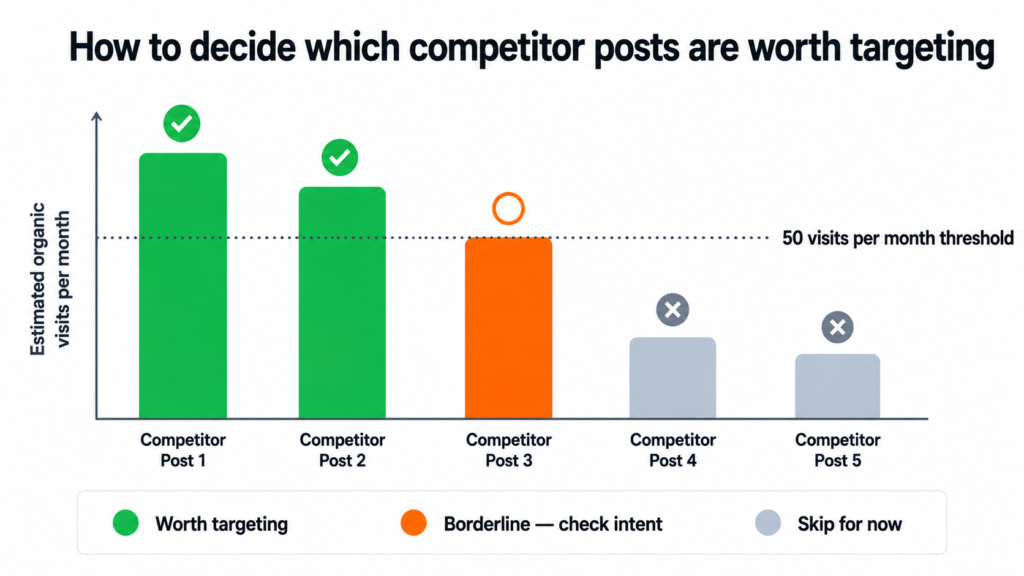
Look for blog posts generating 50 or more monthly organic visits. In niche industries with lower overall search volumes, you can lower this to 20 or 30. What matters is not the absolute number but what is high relative to that industry. A post driving 40 visits per month in a niche B2B category might be one of the most valuable topics available.
Step 5 — Export and organise the data
If the filtered list is long, export it to Excel or Google Sheets. Use a filter to show only rows where the traffic column is above your threshold. Keep the URLs and the traffic numbers. This becomes your master topic list.
Step 6 — Repeat for two to three more competitors
Run the same process on at least two other competitors in your space. The more competitor data you collect, the stronger and more comprehensive your topic list becomes. When multiple competitors are all getting traffic from the same topic, that is a strong signal the topic is worth prioritising.
Step 7 — Drill into the keywords behind each post
Take each blog URL from your list and go back to Semrush Domain Overview. Paste the specific URL into the search bar and select Exact URL from the dropdown. This shows you the organic keywords that particular post is ranking for and the traffic each keyword contributes. From that keyword list, pick 15 to 20 informational keywords that are relevant to your business. These are the keywords your own blog post will target.
Step 8 — Write a better version of the same content
With the topic confirmed and the keywords identified, write a blog post on that subject that outperforms the competitor’s version. More in-depth. More current. Better structured. More useful to the reader at that stage of their search. Use the keywords naturally throughout the content without forcing them.
You are not copying competitor content. You are identifying that demand exists, then creating the best available resource on that topic. The goal is to outperform, not imitate.
What to Realistically Expect
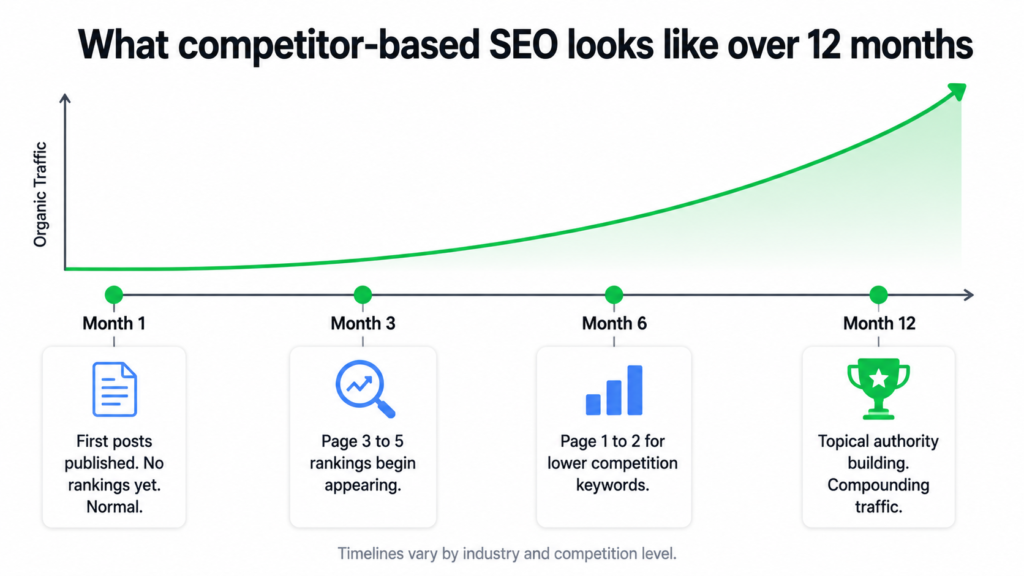
Organic rankings do not appear overnight. New content typically takes three to six months to develop meaningful rankings, sometimes longer in more competitive industries. That timeline is normal and not a sign that the approach is not working.
Not every post will land on page one. But even page two and page three rankings contribute to something important: topical authority. The more blog posts you publish within a specific subject area, the more Google recognises your site as a relevant and trustworthy source on that topic. Rankings that start on page three in month four often move to page one by month ten as that authority builds.
The audience this strategy brings in is worth thinking about too. These are people who found you through Google because they were actively looking for information. They are in research mode. That is the audience most likely to become leads over time because they arrived with intent, not by accident.
SEO from content is a compounding activity. A blog post that ranks today keeps bringing in traffic next year without any additional spend. The value builds the longer the strategy runs.
When This Strategy Has Limits
This approach works best when competitors already have blogs that are generating measurable traffic. If you are in an industry where nobody is blogging with any real results, the data is thin and the strategy loses its foundation.
It also has limits if you want to build a genuinely distinct voice rather than a content strategy shaped by what others are already doing. Following competitor keywords means following competitor topics. That produces traffic but it does not automatically build authority as the definitive source in your niche.
For those situations, a buyer persona-driven approach produces stronger results. Instead of starting with what competitors rank for, you start with a deep understanding of your ideal customer and build content around their specific questions, frustrations, and decisions. I cover the full process for that in the next post: how to build a blog calendar using the buyer persona approach.
The Simplest Way to Think About This
Your competitors are not your enemies in content strategy. They are your research department. Every post they have ranking in Google is a data point that tells you what your shared audience cares about enough to search for.
Use that data. Build better content. Show up where the searches are already happening.
If you want help building this kind of content strategy for your business, or if you want to talk through what the right approach looks like for your specific industry, book a call.
See how I approach SEO strategy →
Dhruv is an SEO consultant working with business owners, founders, and agencies. If organic search is not delivering for your business, this is where to start.
You Are Probably Doing Everything Right Except the One Thing That Actually Matters
You are publishing. You are consistent. The writing is decent and the information is real. But the traffic is not coming. A month passes. Then six. Sometimes a full year. And the blog that was supposed to bring in leads is just sitting there, invisible.
This is one of the most frustrating positions to be in because you followed the advice. Blogging is good for SEO. Content builds authority. Show up consistently and results will follow. You did all of that and got nothing back.
The problem is not your execution. The advice you followed was incomplete. Publishing consistently is necessary but it is not enough on its own. Without a strategy behind what you publish, the content has no real chance of ranking regardless of how well it is written.
The Number That Should Change How You Think About This
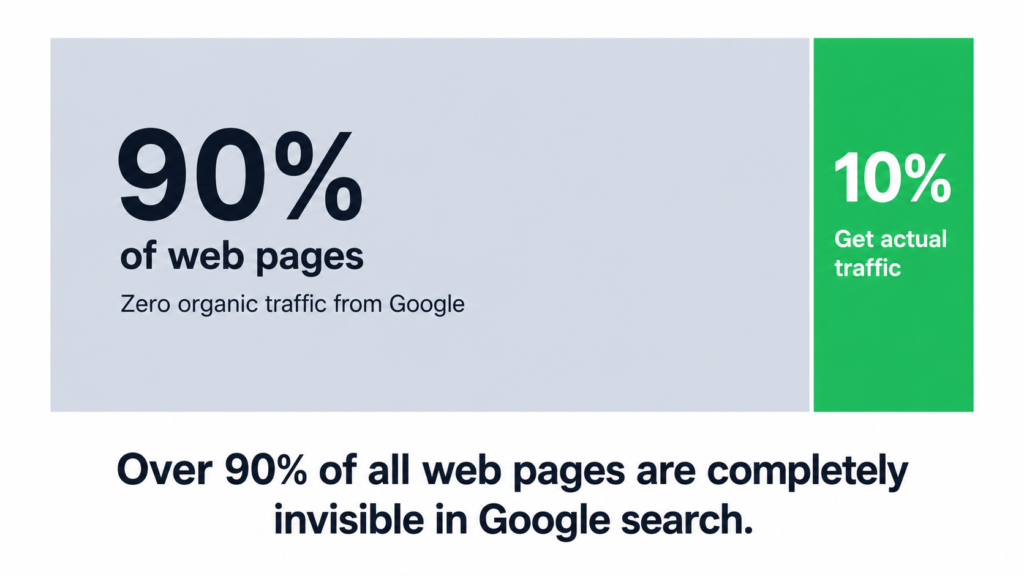
Over 90 percent of all web pages get zero organic traffic from Google. Not a small slice. Not low-quality spam sites. Over nine out of ten pages on the internet are completely invisible in search.
That is not a writing quality problem. Most of those pages are not badly written. They are pages that were published without understanding how Google decides what to show people. That is a strategy problem.
What Google Actually Cares About
Google ranks content based on two things above everything else: relevance and authority.
Relevance means the page directly matches what someone typed into the search bar. Not roughly covers the topic. Directly matches the intent behind the search. Authority means Google trusts your website enough to show it over the hundreds of other pages covering the same subject.
Most business blogs fail on relevance before authority even becomes a factor. Topics get chosen based on what the business wants to say, what feels interesting internally, or what someone suggested in a meeting. None of that has anything to do with what the target audience is actually searching for.
The result is a blog full of content nobody is looking for. Google cannot rank it for searches that do not exist. And the people who would benefit from it never find it because they are searching for something slightly different.
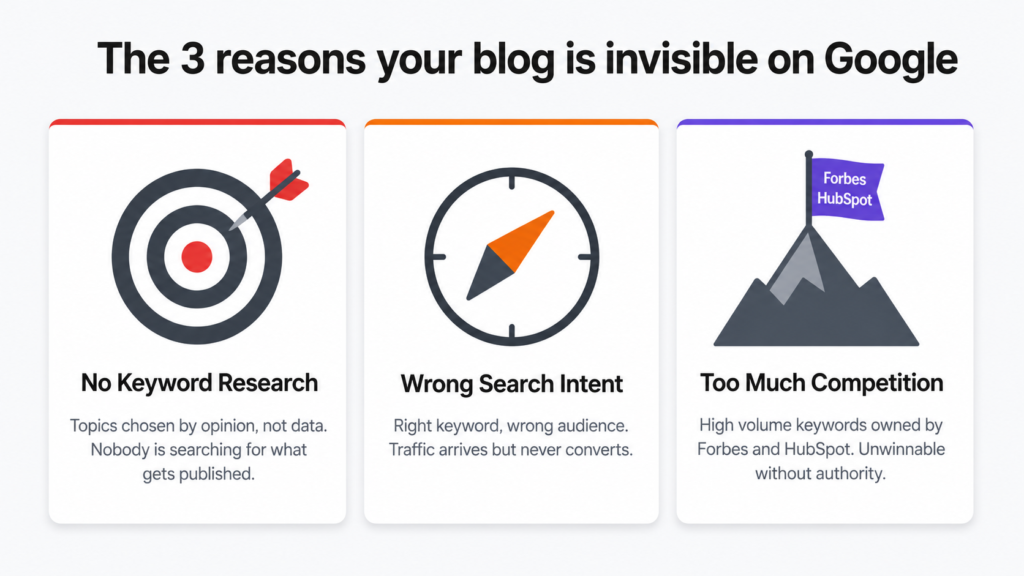
The Three Reasons Blogs Fail to Get Traffic
No keyword research. Topics are picked by gut rather than data. The content is real and useful but it was never built around phrases people actually type into Google. It ranks for nothing because it targets nothing specific.
Wrong search intent. This one is subtle and gets missed even by people who do keyword research. A keyword can have real search volume and still bring in the wrong audience. Writing a post about “what is SEO” might get traffic but the people searching that phrase are complete beginners who will never buy a service. The keyword exists. The traffic exists. The conversions do not. Matching intent means understanding not just what people search but what they are trying to do when they search it.
Too much competition. Some topics have real demand but are owned by sites with enormous authority. Forbes, HubSpot, Semrush, Moz. A new or mid-sized website competing for those keywords is not going to win no matter how thorough the content is. The goal is not to avoid popular topics entirely but to find angles and keyword variations where the competition is actually beatable.
Two blogs can cover the exact same topic. One gets 2,000 visitors a month. One gets zero. The difference is almost never writing quality. It is whether the topic was chosen with real search data or without it.
The Real Cost of Blogging Without a Strategy
The obvious cost is zero results. But the less obvious cost is opportunity. Every hour spent writing a post that will never rank is an hour that could have been spent on a post that would. Every month of inconsistent or misdirected content is a month of compounding SEO value that never built.
A well-targeted blog post published today can bring in traffic for two or three years without any additional investment. That is the compounding nature of SEO. A post written without a strategy brings in nothing in the first month and nothing two years later either.
The gap between those two outcomes is not talent or budget. It is whether the topic was chosen intentionally.
There Are Two Goals a Blog Can Serve — Most Businesses Pick Neither
The first goal is traffic. Publishing content that ranks for keywords your audience is actively searching for and bringing them to your website through Google. This is measurable, scalable, and builds over time.
The second goal is authority. Becoming the most trusted voice in your niche so that when your target audience thinks about your category, they think of you. This is slower to show up in analytics but it is what turns readers into buyers.
Both are legitimate goals. Both require strategy. The mistake most businesses make is not choosing between them. They just publish and hope something happens. Nothing does.
Knowing which goal you are building toward changes everything about how you pick topics, how you structure posts, and how you measure whether the blog is working.
So What Actually Works
There are two approaches that consistently produce results. Which one is right depends on the business, the industry, and what the blog is meant to do.
The first is building your content strategy around what competitors are already ranking for. If your competitors have an active blog that is getting organic traffic, they have essentially published a map of what works in your niche. You use that data to identify topics with proven demand and create better content on those same subjects. I cover this in detail in this post on using competitor research to drive organic traffic.
The second is building your content around your buyer personas. Instead of following competitor keywords, you research your ideal customers in depth — their daily frustrations, the questions they are searching for, the information they need before they make a decision — and build a full content calendar around those insights. This approach is better for niche industries, businesses that want a distinct voice, and anyone whose goal is long-term authority over short-term traffic. I walk through the full process in this post on building a blog calendar using the buyer persona approach.
Both work. The worst option is continuing to publish without either.
One Last Thing
If you have been blogging for months with nothing to show for it, that effort is not wasted. The writing skill is there. The publishing habit is there. What is missing is the strategy layer underneath. Add that and the same effort starts producing very different results.
If you want to talk through what that looks like for your specific business, I am happy to get into it on a call.
See how I approach SEO strategy →
Dhruv is an SEO consultant working with business owners, founders, and agencies. If your blog is not bringing in traffic, the strategy is the starting point.
The Part Nobody Talks About When They Say “Just Request Indexing”
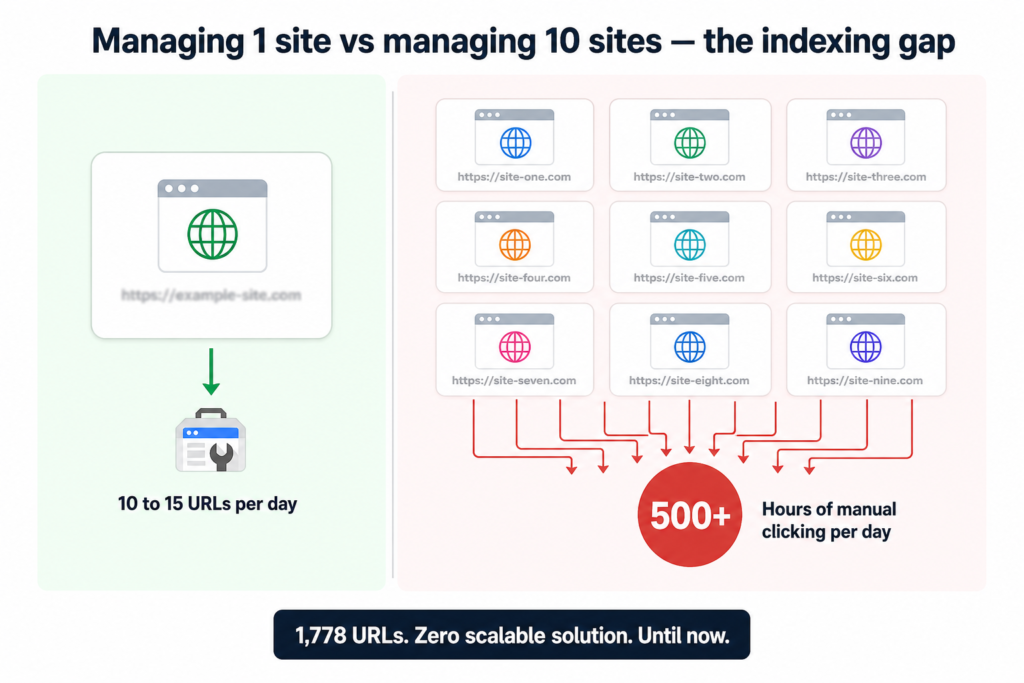
If you have spent any real time in Google Search Console, you know the drill. Open GSC, pick a property, go to URL Inspection, paste a URL, click Request Indexing, wait, go back, do it again. Google lets you do this for roughly 10 to 15 URLs per site per day through the manual interface.
That sounds manageable until you are running an agency with 10 client websites, each with 200 to 300 pages sitting unindexed. Suddenly you are looking at weeks of manual clicking just to get through the backlog. And while you are working through that backlog, new content keeps going live and joining the queue.
This was the exact situation I was dealing with. 1,778 URLs across multiple sites. No realistic way to handle it manually. No tool on the market that solved it the right way without costing a fortune or doing something shady.
So I built one.
Why Existing Tools Did Not Work
Before building anything, I looked at what was already available. The honest summary: most paid indexing tools either charge $50 to $200 per site per month, use methods that bend or break Google’s guidelines (link spam, fake crawl signals), spread their API quota across thousands of customers so you have no idea how much you are actually getting, or give you no visibility into what is happening under the hood.
None of that worked for client work. Clients need transparency. Agencies need control. And nobody needs another monthly subscription that delivers unclear results.
The only clean approach was to use Google’s own APIs directly. Free, official, documented, and fully within Google’s guidelines.
The Five APIs That Power This Tool
Before getting into what the tool does, it helps to understand what each API actually is. None of these require you to be a developer to understand. Think of each one as a different conversation you can have with Google’s infrastructure.
Google OAuth 2.0 is how the tool logs into Google on your behalf. You click Sign In with Google in your browser, approve access once, and your login token is saved locally. You never have to log in again unless you explicitly log out.
The Google Search Console API pulls the list of all websites connected to your Google account automatically. You do not type domain names in manually. The tool fetches everything at once. This matters especially when managing multiple client sites across different Gmail accounts.
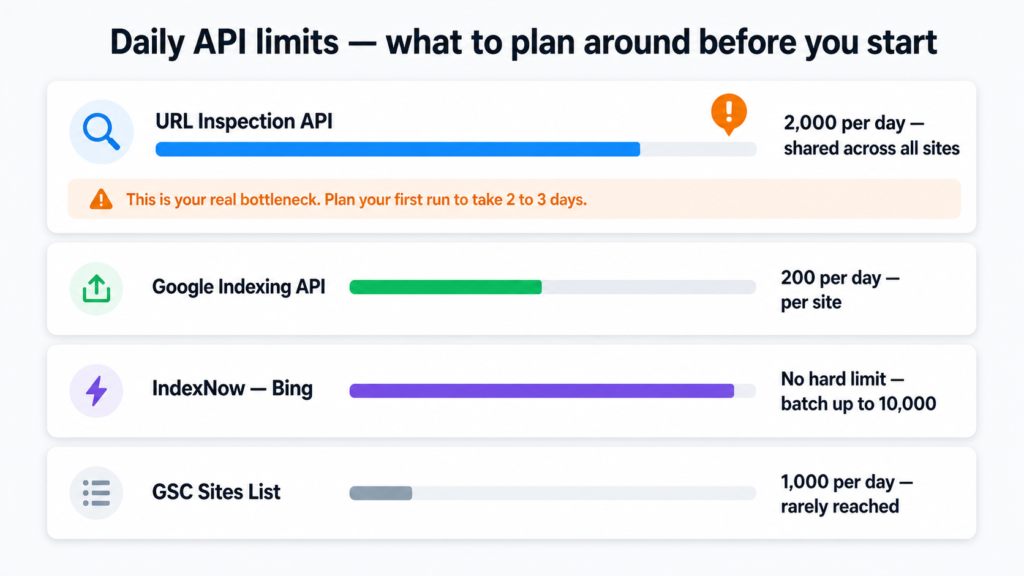
The GSC URL Inspection API is the most powerful piece. Think of it as having a Google employee tell you whether a specific page is in their database, without you having to open Search Console and check manually. For each URL, it returns whether it is indexed or not, when Google last crawled it, whether a noindex tag is blocking it, and whether robots.txt is preventing crawling. The daily limit is 2,000 checks across all your sites combined.
The Google Indexing API is what actually submits URLs to Google for crawling. The daily limit is 200 submissions per site per day. One honest caveat worth mentioning: Google officially designed this API for pages with job posting or livestream structured data. The broader SEO community has used it for all page types for years and it works in practice, but Google could restrict this at any time. It is the best tool available right now within Google’s ecosystem, but it is not a permanent guarantee.
IndexNow is Bing’s free open protocol for instant URL submission. No hard daily limit. You can batch up to 10,000 URLs in a single request and Bing often indexes within hours. The only setup is hosting a small verification text file at the root of your website, which can be tricky for client sites where you do not have direct server access.
The Daily Limits You Need to Plan Around
| API | Daily Limit | Important Note |
|---|---|---|
| GSC URL Inspection | 2,000 checks/day | Shared across ALL your sites |
| Google Indexing API | 200 submissions/day | Per site, not shared |
| Bing IndexNow | No hard limit | Batch-friendly, up to 10,000/request |
| GSC Sites List | 1,000/day | More than enough for any setup |
The URL Inspection limit is the one that actually shapes how you use this tool. With 10 sites at 200 submissions each, you can push 2,000 URLs to Google per day. For a fresh setup with a large backlog, expect to spend the first two to three days working through everything. Once the backlog clears, daily new content volumes are almost always well within the limits.
What the Tool Actually Does
The full workflow from start to finish looks like this:
tool-flow.txt
You open the tool → http://localhost:5000
         |
         v
Sign in with Google (one click, saved after first login)
         |
         v
Tool fetches all your GSC properties automatically
         |
         v
For each site:
         |
         +-- Reads sitemap XML → discovers all URLs
         |
         +-- URL Inspection API → checks indexed vs not indexed
         |
         +-- Queues all unindexed URLs for submission
         |
         +-- Google Indexing API → submits up to 200/day per site
         |
         +-- IndexNow / Bing → submits simultaneously
         |
         v
Dashboard shows live status, quota usage, and full logs
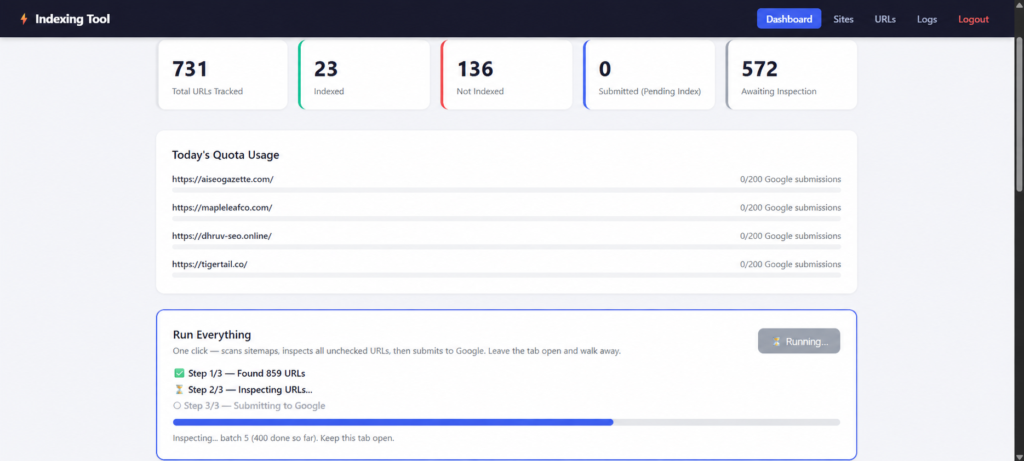
The “Run Everything” button handles the entire sequence in one click. A progress bar shows which step is running. For large sites it can take 30 to 60 minutes. You leave the tab open and walk away.
The Features That Actually Matter for Agency Use
Per-site on/off toggles. If a client is mid-redesign and you do not want their URLs being pushed to Google right now, you flip a toggle and that site is completely skipped in every scan, inspection, and submission. No workarounds. No worrying about accidentally submitting broken pages.
Multiple Google accounts. You connect additional Gmail accounts through a single button. All their GSC properties appear in the tool automatically, each associated with the correct account credentials. This is the feature that makes it genuinely usable for agency work rather than just personal sites.
URL Explorer. A filterable table of every URL in the database. Filter by site, by status (indexed, not indexed, submitted, pending), or search by URL text. Useful for spotting patterns in what is and is not getting picked up by Google.
Full logs. Every single API call is recorded: the site, the URL, the action, the result, and the exact API response. When something goes wrong, you know exactly what happened and when.
Daily scheduler. Four jobs run automatically each morning while the app is open: sitemap scan at 6 AM, URL inspection at 7 AM, Google submission at 8 AM, Bing submission at 8:05 AM. Set it up once and let it run.
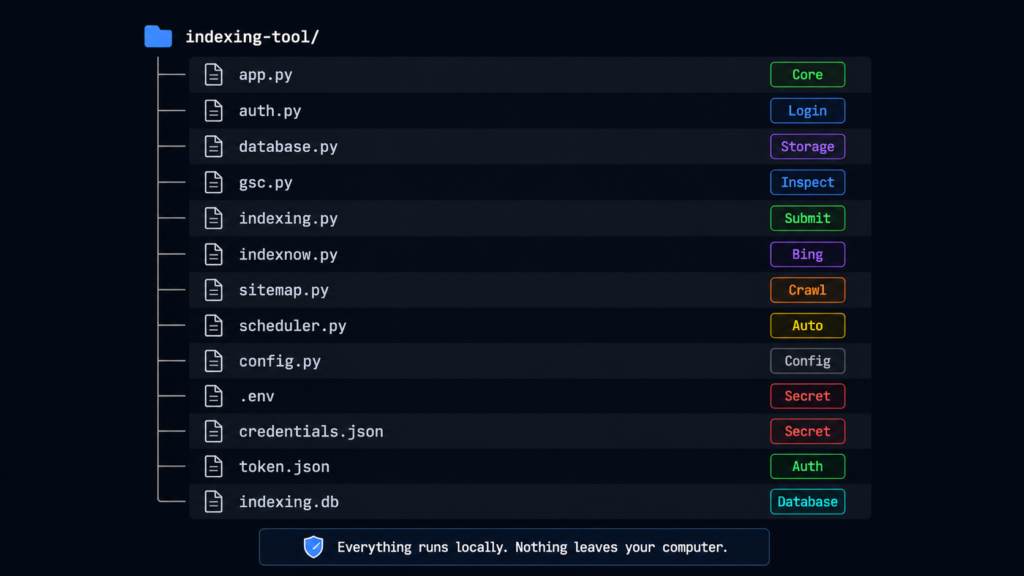
The Project Structure
project-structure.txt
indexing-tool/
├── app.py           ← Main app and all web routes
├── auth.py          ← Google login, token storage, multi-account
├── database.py      ← All database operations
├── gsc.py           ← GSC URL Inspection API calls
├── indexing.py      ← Google Indexing API submission
├── indexnow.py      ← Bing IndexNow submission
├── sitemap.py       ← Sitemap parser (handles index files)
├── scheduler.py     ← Daily automation jobs
├── config.py        ← Loads settings from .env
├── templates/       ← HTML pages (dashboard, sites, URLs, logs)
├── static/          ← CSS and JavaScript
├── .env             ← Your secrets — never share or commit this
├── credentials.json ← Downloaded from Google Cloud Console
├── token.json       ← Auto-created after first login
└── indexing.db      ← Your local database (auto-created)
Everything runs on your own computer. Nothing gets sent to any external server. All data lives in a local SQLite file called indexing.db. For client data privacy, that matters.
The One Technical Step You Cannot Skip
The Google Cloud setup is the only part of this that requires some patience. It takes about 10 minutes and you only do it once.
google-cloud-setup.txt
Step 1: Go to console.cloud.google.com
         Create a new project → name it "Indexing Tool"

Step 2: APIs & Services → Library
         Enable: "Google Search Console API"
         Enable: "Web Search Indexing API"

Step 3: APIs & Services → Credentials
         Create OAuth 2.0 Client ID → Web Application
         Set redirect URI: http://localhost:5000/oauth2callback
         Download the JSON → rename it credentials.json

Step 4: Configure OAuth consent screen
         Set to External
         Add your Google account as a Test User
         Add these scopes (use the full URLs):
         https://www.googleapis.com/auth/webmasters.readonly
         https://www.googleapis.com/auth/indexing

Step 5: Drop credentials.json into your indexing-tool folder
When adding scopes, do not type the short names like webmasters.readonly. Use the full URL versions shown above, or simply check the checkboxes next to the entries in the scopes table. Either works. Typing short names does not.
How to Install and Run It
Once the Google Cloud setup is done, getting the tool running takes under two minutes.
install-and-run.txt
# Prerequisites: Python 3.10+ installed on your computer

# Step 1: Open terminal inside the indexing-tool folder
# (Right-click the folder → Open in Terminal on Windows 11)

# Step 2: Install dependencies
pip install -r requirements.txt

# Step 3: Start the tool
python app.py

# Step 4: Open your browser and go to:
http://localhost:5000

# Step 5: Click "Sign in with Google" and approve access
# That is it. The tool is running.
Keep the terminal window open while using the tool. If you close it, the tool stops. The scheduler also only runs while the app is active, so plan to leave it running during working hours or overnight if you want the automated daily jobs to fire.
What Happened When We Actually Ran It
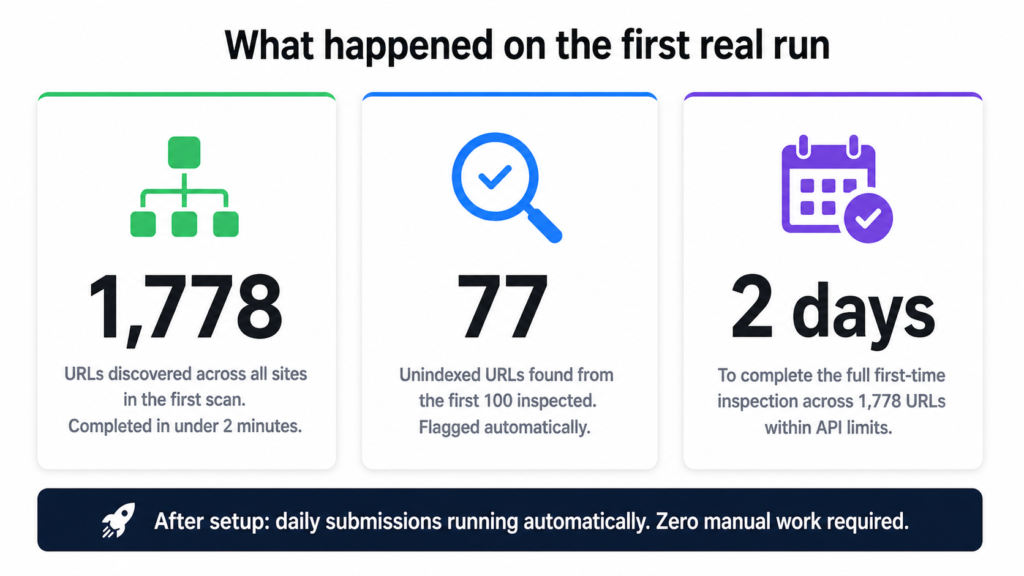
On the first real run across all connected sites, the sitemap scan completed in about two minutes and found 1,778 URLs. The URL Inspection step found 77 unindexed URLs from just the first 100 inspected. With the 2,000 per day inspection limit, the full first-time scan across everything took two days to complete.
The most time-consuming part of the entire setup was the Google Cloud configuration, not the tool itself. Once that was done, everything else ran cleanly.
After the first two days: full sitemap coverage, all unindexed URLs identified, daily submission running automatically. No manual GSC clicks. No spreadsheet tracking. No repetitive workflow.
What This Tool Cannot Do
Being straight about the limitations matters more than overselling what this does.
Submitting a URL is a crawl request, not a guarantee. Google decides whether to actually index a page based on content quality, relevance, site authority, and signals that no tool can influence. A page with thin content or duplicate issues will not get indexed just because you submitted it 200 times.
The 200 per day and 2,000 per day API limits are hard Google limits. The tool does not bypass them. If you have 5,000 unindexed URLs across 10 sites, you are working through them over multiple days. That is just how Google’s API works.
The Google Indexing API was officially built for job postings and livestreams. It works for general content right now, and has worked for years. But it is not a permanent guarantee and Google could tighten restrictions. Worth knowing before building your entire workflow around it.
And it does not work without the credentials.json file from Google Cloud. There is no way around that step.
The Bigger Point About AI-Built Tools
This entire tool, including the planning, the code, the debugging, and the feature additions, was built through a conversation with an AI. No developer was hired. No agency was briefed. No months of back and forth.
The barrier to building custom SEO tooling has genuinely never been lower. If you can describe the problem clearly and work through the iterations, you can have something functional and production-ready without a technical background. The hard part is not the code. It is knowing what the tool needs to do and being specific enough about it.
That applies to indexing tools, reporting dashboards, rank trackers, content workflows, client onboarding systems, and anything else that currently lives in a spreadsheet or happens manually. If it is repetitive and rule-based, it can probably be automated. And it probably does not need a six-month development project to get there.
Want This Built for Your Site or Your Agency?
If you manage multiple client websites and the indexing workflow is a real operational drain, this is something that can be built and configured for your specific setup. Every agency has different site structures, different GSC configurations, and different volume requirements. The tool above is a solid foundation and it can be adapted.
Beyond indexing automation, if you want your content to show up in both Google search results and AI-generated answers, that sits at the core of what I work on with agencies and business owners. AEO (Answer Engine Optimization) and custom SEO strategy are not separate from operational work like this. Getting indexed properly is step one. Being found and cited is what comes after.
If you want to talk through your indexing situation, your search visibility, or whether an automation like this makes sense for your setup, book a call. No pitch. Just a real conversation.
Dhruv is an SEO and AEO consultant working with business owners, founders, and agencies. If search visibility is a problem for your business, this is the right place to start.
Why I Built This
Running a niche SEO blog while managing client work is a time problem. You know you need to publish consistently. You know Google rewards sites that stay fresh and build topical depth. But actually writing two quality articles a day on top of everything else is not realistic for most people running a real business.
I looked at the standard options. Freelance writers cost $50 to $150 per article and still need briefing, editing, and back-and-forth. Generic AI writing tools produce content that reads like a Wikipedia article written by someone who has never done SEO. Content agencies are slow, expensive, and almost always off-brand.
None of those options solved the actual problem. I needed something that researched topics properly, wrote in a real voice, structured content for both readers and search engines, and ran every morning without me involved. So I built it for AI SEO Gazette from scratch.
What the System Actually Does
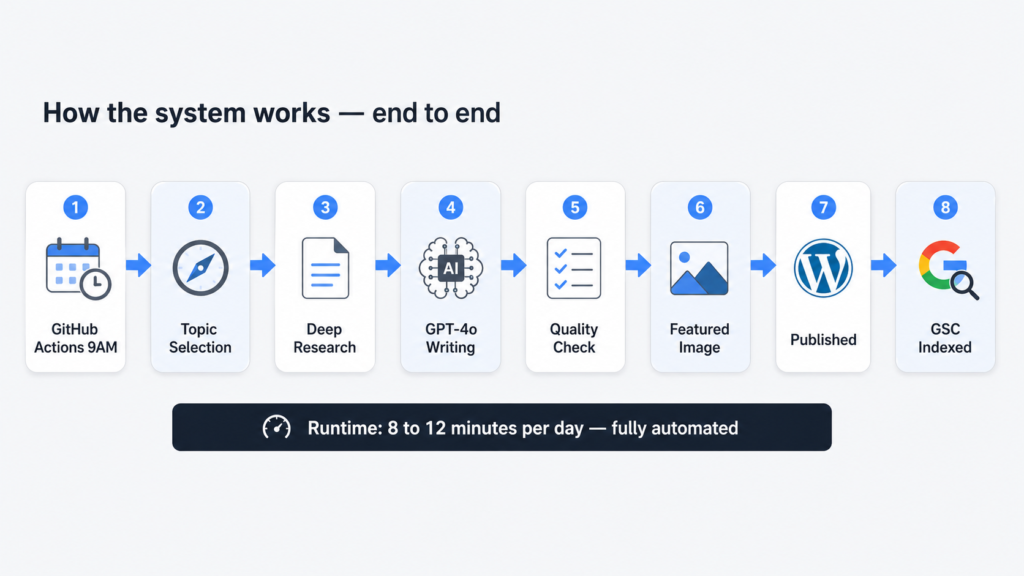
Every morning at 9 AM, a Python script wakes up on GitHub Actions and runs through the same sequence for two articles: one covering a current AI or SEO news story from the past 48 hours, and one covering an evergreen topic that practitioners are actively searching for right now.
For each article, it finds a topic worth writing about, pulls deep research from the web with real citations, hands that research to GPT-4o to write a structured 850 plus word article in HTML, fetches a featured image, uploads everything to WordPress with the right categories and tags, and immediately submits the new URL to Google Search Console for indexing.
Total runtime each morning: 8 to 12 minutes. Human involvement required: zero.
The Stack, Explained Simply
Here is every tool in the system and what it actually does:
stack-overview.txt
# THE FULL STACK

Scheduler      GitHub Actions (cron)     — runs at 9 AM IST daily, free tier
Topic finder   Perplexity Sonar API      — live web access, real current topics
Researcher     Perplexity Sonar API      — deep research with citation URLs
Writer         OpenAI GPT-4o            — structured HTML article output
Publisher      WordPress REST API + JWT  — posts directly to WordPress
Images         Unsplash API             — free high quality featured photos
Indexing       GSC Indexing API         — tells Google to crawl immediately
Language       Python 3                 — glues everything together
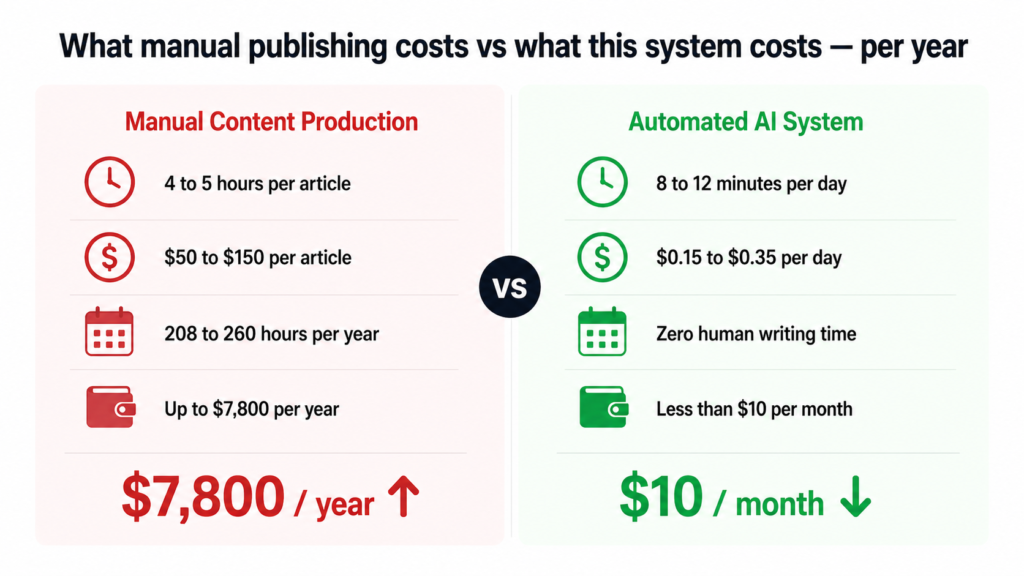
The most important thing to understand about this stack is that none of these tools are expensive or obscure. GitHub Actions is free. Unsplash is free. The Google Search Console Indexing API is free. The only real costs are the Perplexity and OpenAI API calls, and those add up to roughly $0.15 to $0.35 per day.
How the Pipeline Flows
The script runs as a single Python file. Here is the full flow from trigger to published article:
pipeline-flow.txt
GitHub Actions cron trigger (3:30 AM UTC = 9 AM IST)
         |
         v
WordPress JWT authentication
         |
         v
Bulk pre-load ALL categories + tags into memory
         (one single GET request — more on why this matters later)
         |
         v
FOR EACH article type [news, evergreen]:
         |
         +-- Perplexity Call 1: Topic selection
         |       returns: title, angle, source URL
         |
         +-- Perplexity Call 2: Deep research on that topic
         |       returns: 4000-8000 chars of research + citations
         |
         +-- Filter citations to authority domains only
         |
         +-- GPT-4o: Write full article as JSON
         |       input:  system prompt + research + citations
         |       output: title, HTML content, meta, categories, tags
         |
         +-- Validate: word count ≥700, FAQ block present,
         |          ≥3 categories, ≥4 tags
         |          (auto-retry once if failed)
         |
         +-- Unsplash: Fetch featured image
         |
         +-- WordPress: Upload image, resolve term IDs, publish post
         |
         +-- Google Search Console: Submit URL for immediate indexing
The Three Bugs That Nearly Broke Everything
The pipeline above looks clean now. It was not clean getting here. The system ran for several days publishing broken articles before I tracked down what was actually going wrong. Here are the three bugs in order of how much they cost me in time and frustration.
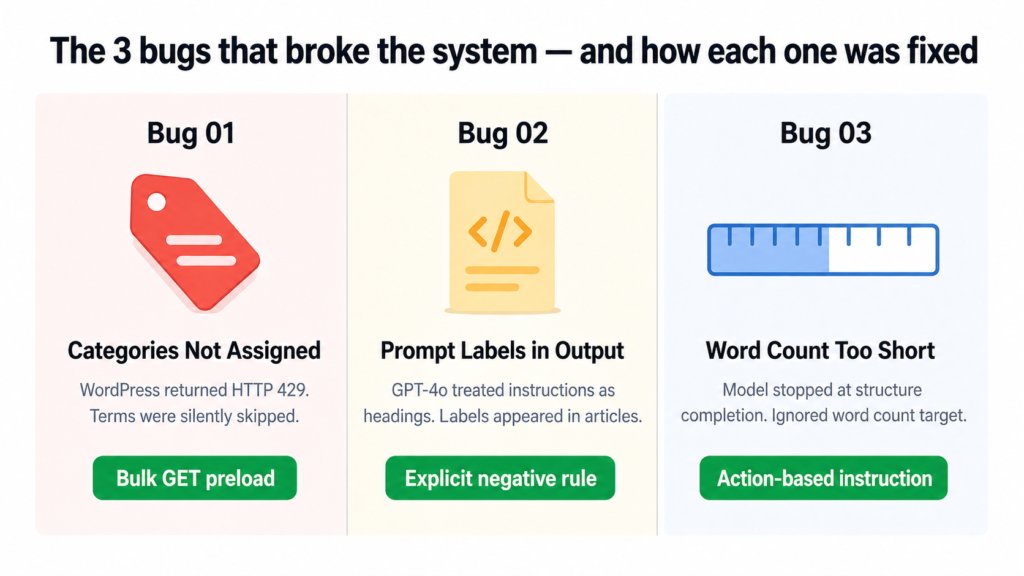
Bug One: WordPress Was Silently Ignoring Categories and Tags
Every article was publishing with exactly one category and zero tags. The script was not crashing. No errors were being thrown. It just quietly skipped every term after the first couple and moved on.
The cause was WordPress rate limiting. The original code called the REST API once per category and once per tag, sequentially. That is roughly 13 API calls in a row. WordPress started returning HTTP 429 errors after the first two or three calls, and the code was silently swallowing those errors and skipping the terms.
the-actual-log-output.txt
[WARNING] Skipping term 'AI in SEO': HTTP 400
[WARNING] Skipping term 'SEO Strategies': HTTP 429
[WARNING] Skipping term 'Content Optimization': HTTP 429
[WARNING] Skipping term 'SEO News': HTTP 429
[INFO] Categories: 1 assigned | Tags: 0 assigned
The fix was to stop making individual API calls entirely. Instead of asking WordPress for each term one by one, the script now makes a single GET request at startup that loads every existing category and tag into memory as a dictionary. From that point, term resolution is an instant lookup with no API calls at all.
preload_wp_terms.py
def preload_wp_terms():
    for taxonomy, cache in [("categories", WP_CATEGORY_CACHE), ("tags", WP_TAG_CACHE)]:
        page = 1
        while True:
            r = requests.get(
                WP_URL + "/wp-json/wp/v2/" + taxonomy,
                params={"per_page": 100, "page": page}, ...
            )
            items = r.json()
            for item in items:
                cache[item["name"].lower()] = item["id"]  # instant lookup later
            if len(items) < 100:
                break  # no more pages
            page += 1
Result: Both articles now consistently get 5 categories and 5 tags assigned on every single run.
Bug Two: GPT-4o Was Including Its Own Instructions Inside the Article
This one was embarrassing to find live on the site. Published articles had visible headings like “HOOK”, “FAQ Block”, and “External Links” appearing as actual text that readers could see. The model was treating the numbered section labels in the prompt as headings to include in the HTML output.
The original prompt framed the article structure like this:
broken-prompt-structure.txt
1. HOOK: One or two punchy opening sentences...
2. KEY TAKEAWAYS: Use this exact HTML block...
4. EXTERNAL LINKS: Naturally embed 2-3 links...
5. FAQ BLOCK: Exactly 4 Q&A pairs...

// GPT-4o read these as section titles and output them as <h2> tags
// Result: readers saw "HOOK" and "FAQ Block" as visible article headings
The fix was to rewrite the prompt structure entirely, replacing numbered labels with “Part 1, Part 2” framing and adding an explicit hard rule at the top of the prompt:
fixed-prompt-rule.txt
CRITICAL: Do NOT output any meta-labels or section titles like 'HOOK',
'BODY', 'FAQ Block', 'External Links', 'CTA', or any numbered section
markers as visible text in the article. These are writing instructions
for you, not headings to include in the output.
Result: Clean article output every time. No structural labels, no prompt bleed-through, content reads naturally from top to bottom.
Bug Three: Word Count Kept Falling Short Even After Retries
Articles were coming in at 526 to 637 words even though the prompt asked for 850 plus. The retry sometimes made it worse, not better. The model was finishing the article structure and stopping, treating “I have covered all the sections” as the signal to end rather than “I have hit the word count.”
The issue was that “write at least 850 words” was buried at the end of a long prompt and gave the model no actionable instruction for what to do when it was running short. The fix was to make the requirement impossible to miss and give the model a specific action to take if it was under target:
word-count-fix.txt
MANDATORY WORD COUNT: The 'content' field must contain AT LEAST 850 words
of readable text (excluding HTML tags). Count carefully.

If you finish the how-to section and the FAQ and you have fewer than
850 words, you have not written enough.

Add more H2 body sections before the FAQ until you reach 850 words.
Do not truncate early. The main body section alone must be at least
600 words by itself.
Result: Articles now consistently hit 700 to 850 words on the first attempt. When the retry triggers, it produces 820 plus words reliably.
What a Clean Run Looks Like
After all three fixes landed, here is what the actual log output looked like on the first fully successful run:
clean-run-log.txt
[INFO] WP term cache: 34 categories, 39 tags loaded.

[INFO] Article: Google AI Max Now Available (649 words)
[WARNING] Quality check failed — retrying...
[INFO] Retry result: PASSED (828 words)
[INFO] Categories: 5 assigned | Tags: 5 assigned
[INFO] Published: aiseogazette.com/google-ai-max-for-search-campaigns/
[INFO] GSC submitted: aiseogazette.com/google-ai-max-for-search-campaigns/

[INFO] Article: Mastering Generative Engine Optimization (762 words)
[INFO] Categories: 5 assigned | Tags: 5 assigned
[INFO] Published: aiseogazette.com/mastering-generative-engine-optimization/
[INFO] GSC submitted: aiseogazette.com/mastering-generative-engine-optimization/

[INFO] All 2 articles published successfully. Total runtime: 9 min 42 sec
What It Actually Costs
| Tool | Daily Cost | Monthly Cost |
|---|---|---|
| Perplexity Sonar API (4 calls/day) | ~$0.02 to $0.05 | ~$0.60 to $1.50 |
| OpenAI GPT-4o (2 to 4 calls/day) | ~$0.10 to $0.30 | ~$3 to $9 |
| GitHub Actions | $0 | $0 (free tier) |
| Unsplash API | $0 | $0 (free tier) |
| Google Search Console Indexing API | $0 | $0 (free tier) |
| Total | ~$0.12 to $0.35 | ~$4 to $10 |
To put that in perspective: two researched, structured, published, and indexed articles every single day for the cost of a coffee per month. The manual equivalent of this output would cost $2,600 to $7,800 a year in writer fees alone.
What the System Cannot Do Yet
I want to be honest about the current limits because this is a real working system, not a concept piece.
It does not yet handle internal linking, meaning it will not automatically link new articles to older relevant posts on the site. It does not post to social media after publishing. It does not check whether a very similar topic was covered recently. And it does not yet read Search Console performance data to inform future topic selection, though that is the most interesting thing on the roadmap.
These are solvable problems. They just have not been built yet.
Five Things This Build Taught Me
Rate limits fail silently and that is the worst kind of failure. The WordPress 429 issue ran for days before I caught it because the script never crashed. Always log every skipped item with the actual reason it was skipped.
Tell the model what NOT to do, not just what to do. The section label bug was only fixed when I added an explicit negative instruction. Describing the structure you want is not enough on its own. You also have to describe what you do not want in the output.
Give the model an action, not just a target. “Write 850 words” is easy to ignore. “If you are under 850 words, add more H2 sections before the FAQ” gives it something concrete to do. Targets without actions get approximated. Actions get followed.
Bulk operations eliminate entire categories of bugs. Switching from 13 sequential API calls to one bulk GET did not just make the code faster. It made a whole class of rate-limiting failure impossible. Whenever you see sequential API calls in a loop, ask whether they can be batched.
Read the actual logs. Several times during this build I thought I understood the failure and I was wrong. The logs told the real story every time. Assumptions are expensive. Logs are free.
Want This for Your Own Site?
If you run a WordPress site and want a content system like this built for your specific niche, your brand voice, and your existing category structure, this is something I can build and set up for you. The tools exist, the approach is proven, and the ongoing cost is trivial. What takes time is getting the prompt right for your voice and your audience.
Beyond automation, if your business needs to show up in Google search results and in AI-generated answers (AEO), that is exactly what I work on with agencies, founders, and business owners every day. SEO and AEO are not separate strategies anymore. The sites that win over the next two years will be the ones that are structured for both.
If you want to talk about your content operations, your search visibility, or building a system like this for your own site, book a call. No sales pitch. Just a real conversation about what would actually move the needle for your business.
Dhruv is an SEO and AEO consultant working with business owners, founders, and agencies. 500+ projects. 6+ years. If organic search is a problem for your business, this is the right place to start.
Published by Dhruv — SEO Consultant for Agencies & Businesses
TL;DR
I built an AI workflow to write long-form blog content at scale. It took four rounds of iteration, broke in four different ways, and never fully hit the original word count target. But it now produces a clean, on-brand 1,300 to 1,450-word draft in about 3 minutes, costs $0.20 per post, and needs only 5 to 10 minutes of human editing. Here is exactly what happened, what failed, and what I actually ended up with.
I want to start with something most AI content posts will not tell you: the first version was pretty bad.
Not unusable. Not embarrassing. But nowhere near what I needed. And the gap between “it kind of works” and “I would actually publish this” took a lot longer to close than I expected.
This is the honest version of that story.
What I Was Trying to Build
The goal was a repeatable system for long-form blog content. Each post needed to land between 1,950 and 2,100 words, follow a specific structure, carry 4 to 5 internal links placed naturally, stay within short readable paragraphs, and sound like it was written by someone who actually knows the industry. No filler. No generic advice dressed up as insight.
Before this system existed, one blog post took 4 to 5 hours of combined writing and editing time, and cost anywhere from $50 to $150 depending on who was writing it. Across 52 posts a year, that is 208 to 260 hours and up to $7,800. Those numbers made it very easy to justify building something better.
Round One: It Just Stopped Halfway
The first approach was simple. Write one prompt, get one blog post. It seemed reasonable.
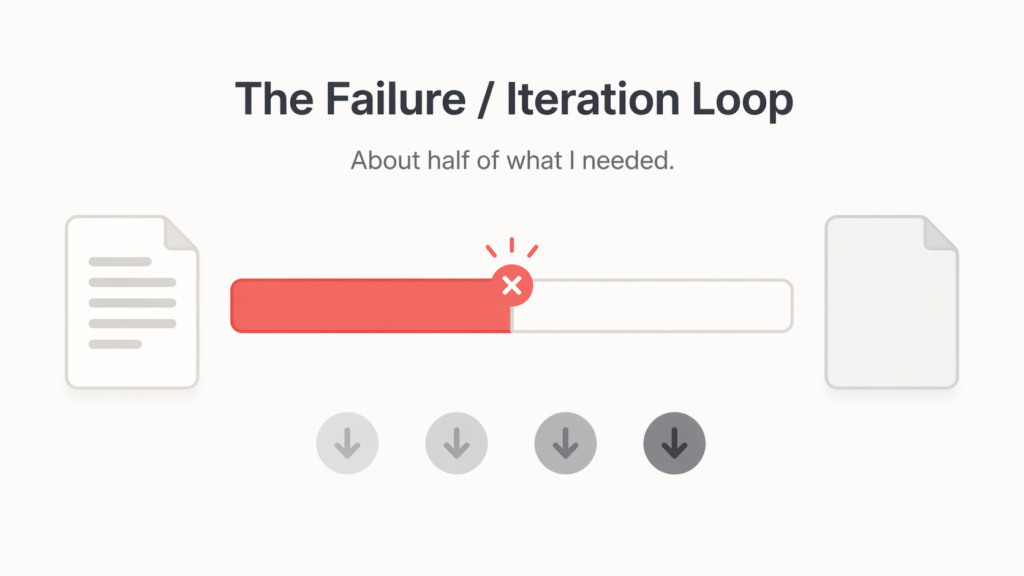
What actually happened was that the model would write a decent introduction and a solid first section, then quietly start losing structure. By the time it reached the middle of the article, paragraphs were getting longer, sections were getting thinner, and the whole thing just stopped around 950 to 1,200 words. About half of what I needed.
The links were almost never there. When they were, they appeared once, usually in the wrong section. Paragraph length crept up to 90 to 150 words regularly. The brand voice held for the first third and then drifted.
The lesson from round one was simple: a single prompt cannot hold the shape of a long article. The model does not forget what you asked for, but it does lose discipline over distance.
Round Two: Split It Into Two Passes
The fix seemed obvious. Break the article into two prompts. First prompt handles the introduction and the first three sections. Second prompt handles the remaining sections, the checklist, and the close.
This was better. The structure got more consistent and the output felt more controlled. But two new problems appeared almost immediately.
First, the total word count only reached 1,250 to 1,450 words. Still short. Second, the second prompt kept repeating the article title at the top of its output, even when I told it not to. Every single time. It was one of those things that seemed easy to fix with a clearer instruction, and then kept happening anyway.
Two-pass generation was clearly the right direction. But prompting alone was not going to solve everything.
Round Three: Stop Trying to Fix Everything in the Prompt
This was the turning point, and it came from accepting something uncomfortable: some problems are easier to fix with code than with words.
The internal linking issue was a good example. Asking the model to place links naturally and distribute them across the article produced inconsistent results. Sometimes it worked. Sometimes all four links landed in the same paragraph. Trying to write a prompt that reliably fixed this was a diminishing returns exercise.
So instead, I introduced ALL CAPS placeholders inside the generated content. The model would write something like “working with a NYC EVENT PRODUCTION team means…” and a post-processing script would replace that placeholder with the actual hyperlink after generation. Clean output during writing, correct links in the final version.
The duplicate title problem got solved the same way. A function scanned the combined output for any repeated H1 and removed it automatically. Two lines of code that worked every time, compared to prompt instructions that worked most of the time.
Round Four: Tighten Everything and Accept the Tradeoff
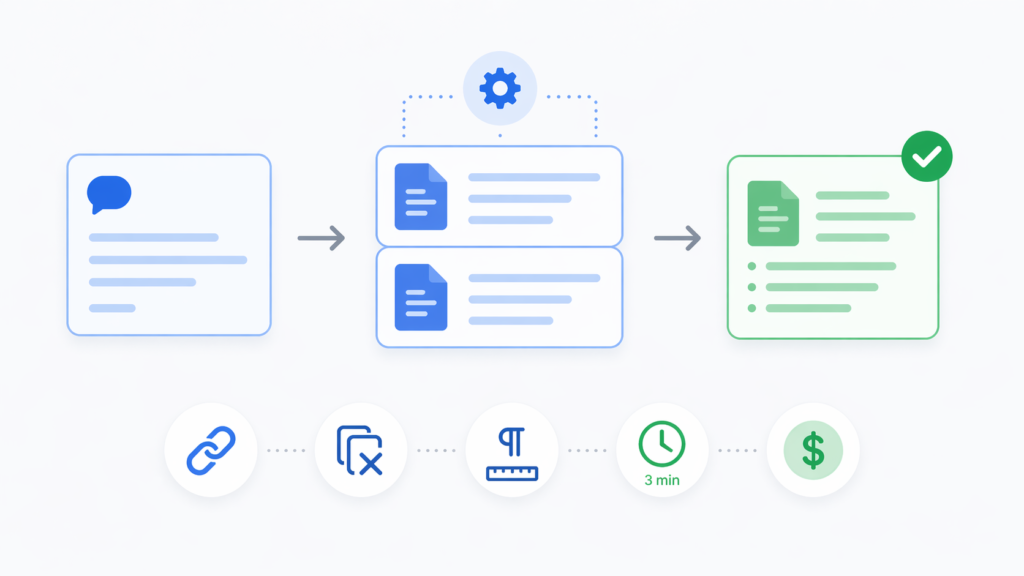
The final version of the system pulled everything together. Two-pass GPT-4o generation with lower temperature for consistency, maximum token allowance to reduce early stopping, strict paragraph length instructions, the duplicate title remover, and the link post-processing step.
Here is what stable output looked like:
- Word count: 1,320 to 1,450 words per post
- Generation time: around 3 minutes
- Human editing time: 5 to 10 minutes
- Internal links: 4 to 5, placed naturally
- Paragraph length: almost always under 70 words
- Cost per post: approximately $0.20
- Brand voice: consistently strong
The one thing that did not get solved was the word count target. The original goal was 1,950 to 2,100 words. The system never reliably got there. After a while, I stopped trying to force it and started asking a different question: is a consistent 1,380-word post that ships every time actually worse than a 2,000-word post that requires constant intervention?
For this workflow, the answer was no. The shorter, cleaner draft was more useful.
What the Numbers Actually Look Like
Compared to the manual baseline, the impact was significant across every metric that mattered.
- Annual writing time dropped from 208 to 260 hours down to roughly 26 to 39 hours including editing
- Cost per post dropped from $50 to $150 down to about $0.20 in generation cost
- Annual content cost dropped from up to $7,800 to just over $10 in API spend
- Time saved across 52 posts: roughly 180+ hours per year

The word count shortfall meant each post needed a bit more from the human editor to expand key sections. But that tradeoff was worth it given everything else the system got right.
The Four Things That Kept Breaking
If you are building something similar, these are the failure modes worth knowing about before you hit them yourself.
Word count collapse. Single-pass prompts consistently fell short. The model does not run out of knowledge, it just loses structural discipline over long outputs. Two-pass generation is the practical minimum for anything over 1,200 words.
Link clustering. Left to itself, the model tends to place multiple links close together or in a single section. Post-processing is far more reliable than prompt instructions for solving this.
Title duplication. The second prompt often repeated the article title even with explicit instructions to skip it. A simple programmatic check fixed this permanently.
Paragraph bloat. Explanation-heavy sections regularly ballooned past 140 words. Explicit limits help, but a human pass is still the most reliable way to catch this.
The Actual Takeaway
The system did not produce the perfect 2,000-word automated blog post I originally planned for. What it produced was something more practical: a dependable, brand-consistent draft that is ready for a light human edit in under 10 minutes, at a cost that makes weekly publishing genuinely viable for any business.
The biggest mindset shift was treating the human editor as part of the system rather than as evidence that the system failed. The AI handles the structural heavy lifting. The editor catches what slipped through. Together, they produce something neither would get to as quickly alone.
If you are trying to build the same thing, start with two-pass generation, move formatting fixes into post-processing early, and pick a word count you can hit consistently rather than one you can hit occasionally.
Want to Talk Content Systems or SEO Strategy?
This kind of workflow thinking sits at the intersection of content operations and SEO. If you are trying to build something similar for your agency or business, or if you just want to talk through what a content system could look like for your specific situation, I am happy to get into it.
Dhruv is an SEO consultant working with agencies, founders, and business owners. 500+ projects. 6+ years. No fluff.
Published by Dhruv — SEO Consultant for Agencies & Businesses
TL;DR
Managing multiple client projects across Google Sheets was eating hours every week. So I built three Google Apps Script automations that handle sheet creation, team permissions, hyperlinks, and project syncing — all from a single button click. What used to take 23 minutes per project now takes under 60 seconds. This post walks you through what I built, why I built it, and the exact bug I had to fix along the way.
Running an SEO operation across multiple agencies means a lot of moving parts. Clients, trackers, handoffs, status updates — the backend work can quietly eat your week if you let it.
For a while, I let it.
Every time I onboarded a new client project, the routine looked something like this: open a blank sheet, copy the template, rename it, share it with the right people, paste the hyperlink in the right place, update the main tracker, and then do the same thing again in the agency sheet. Rinse and repeat.
On a good week, that meant doing this three or four times. On a busy week, more. Each round took roughly 20 to 25 minutes. None of that time was billable. None of it was strategic. It was just friction — repetitive, error-prone, and completely unnecessary.
So I fixed it.
The Setup: What the Project System Looked Like
Before getting into the automations, here is some context on the structure I was working with.
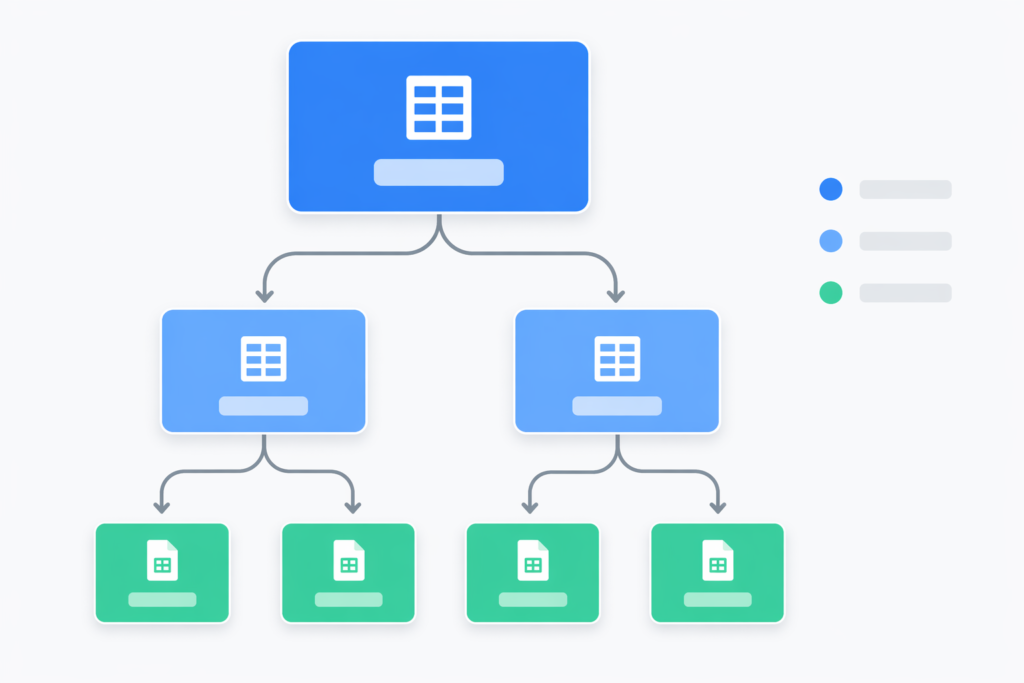
I manage projects across multiple sheets — a Main Project Sheet that acts as a central hub, individual agency sheets for each team lead, and per-project Master Tracker sheets that hold detailed tracking data. Each sheet has two tabs: Running (active projects) and Suspended (paused or completed).
Every row in every sheet follows the same four-column structure:
- Column A: Website URL
- Column B: Start Date
- Column C: Client Name
- Column D: Master Tracker (a hyperlink to the project-specific sheet)
The goal was simple: when a new project gets added to the Running tab of an agency sheet, one button click should handle everything else automatically.
The Problem That Made Me Build This
The manual workflow had a few specific failure points that kept coming up.
Inconsistent hyperlinks. When you’re copying and pasting URLs manually, mistakes happen. A wrong link here, a missed update there, and suddenly someone on the team is looking at the wrong project sheet.
Permissions chaos. Different projects needed to be shared with different people. Ryan’s projects go to Ryan, Sam, and me. Alex’s projects go to Alex and me. Self projects stay with me. Managing that manually left room for access gaps that only surfaced at the worst times.
Sync failures. The Main Project Sheet and the agency sheets need to stay in sync. When you’re updating both manually, they drift apart. That creates confusion about what is active, what is suspended, and where the latest data lives.
Time. The biggest problem was simply time. Twenty-three minutes per project adds up fast. Across a year, that is easily 20 hours or more of setup work that produces zero client value.
What I Built: Three Automations, One Logic
I wrote three Google Apps Script automations — one for Alex’s projects, one for Ryan’s projects (NovaCare Digital), and one for my personal projects. They all follow the same core logic, with variations based on who gets access.
Automation 1: Alex’s Projects
This handles all client projects assigned to Alex. When triggered, it scans the Running tab for any row that has a website URL, start date, and client name but is missing a Master Tracker link. For each of those rows, it:
- Copies the template sheet and renames it using the client’s domain name
- Shares the new sheet with Alex and me
- Writes a working hyperlink formula into column D on that row
- Syncs the project data to the Main Project Sheet
- Handles suspended projects when needed
Trigger: clicking 🚀 Automation → Add Master Tracker Link from the custom menu.
Automation 2: Ryan’s Projects
Same structure, slightly different team. Ryan’s projects (under NovaCare Digital) involve three people — Sam, Ryan, and me — so the sharing step covers all three. The suspended project workflow also moves rows from the Running tab to the Suspended tab, then cleans up the corresponding entry on the Main Sheet.
This one was the most complex to build because keeping three sheets in sync (Ryan’s agency sheet, the Main Sheet, and the project-specific tracker) required careful sequencing to avoid overwriting data.
Automation 3: Self Projects
The simplest of the three. This one only processes rows where the client name includes “Self,” so personal and internal projects stay separated from client work. No team sharing. No agency sheet sync. Just a clean Master Tracker sheet created for my own reference.
Trigger: 🚀 Automation → Create Self Project Sheets
The Bug That Took Me a While to Figure Out
Here is the part I want to dwell on, because it is the kind of thing that can waste hours if you do not know what to look for.
When I first tested the automations, the hyperlinks were not working. The formula bar was showing HYPERLINK(...) instead of =HYPERLINK(...). The cells displayed as plain text. Clicking them did nothing.
At first I assumed it was a formula syntax issue. I checked the formula. It was fine. I ran the script again. Same result. The formula was being stored as text, not executed as a formula.
After some digging, I found the cause.
The original broken approach inserted a new row into the sheet first, then tried to immediately write a formula into that new row:
// ❌ Broken
sheet.insertRows(2, 1);
sheet.getRange(2, 4).setFormula(`=HYPERLINK("${newSheetUrl}","Master Tracker")`);
The problem is that Google Sheets’ API handles row insertions asynchronously. By the time setFormula() runs, the sheet structure has not fully settled. The formula gets interpreted as a text value instead of a formula, and the = sign effectively disappears.

The fix was straightforward once I understood the cause. Instead of inserting a row and writing to it, I wrote directly to the existing row where the data already lived. No insertion. No timing conflict. The formula executed correctly every time.
// ✅ Fixed
sheet.getRange(rowIndex, 4).setFormula(`=HYPERLINK("${newSheetUrl}","Master Tracker")`);
The lesson: if you are writing formulas in Apps Script, always set them on stable, pre-existing rows. Row insertion operations create a timing gap that can silently break formula execution.
The Result: Before vs. After
Here is what the workflow looked like before and after:
Before (manual):
- Create and name the sheet: ~5 minutes
- Copy the template over: ~2 minutes
- Configure sharing for the right people: ~3 minutes
- Add hyperlinks to two sheets: ~5 minutes
- Enter project data by hand: ~5 minutes
- Move tabs if the project changes status: ~3 minutes
- Total: ~23 minutes per project
After (automated):
- Add three data points to the sheet (URL, date, client name): 30 seconds
- Click the automation button: 10 seconds
- Wait for everything else to run: 20 seconds
- Total: ~60 seconds per project
That is roughly a 95% reduction in setup time. More importantly, it is error-free. The right people always get access. The hyperlinks always work. The Main Sheet always stays in sync.

What This Taught Me About Operations
I want to be direct about something: the automation itself is not the point.
The point is that repetitive backend tasks are a silent tax on every agency and freelance operation. They rarely feel urgent. They do not show up in client reports. But they accumulate. And over time, they add up to real hours that could have gone toward strategy, outreach, or simply not working on weekends.
If you are running client projects out of Google Sheets and doing any part of the setup manually, you are probably spending more time on it than you realise. A bit of Apps Script — which is just JavaScript, and which requires no external tools or subscriptions — can handle most of that automatically.
The barrier is usually not technical. It is just that nobody has sat down to build it yet.
Want to Talk Through Your Setup?
If you are managing client SEO projects and the operational side is starting to feel heavy, I am happy to talk through it. I work with agencies, founders, and business owners on both the SEO strategy side and the systems that support it.
Read more articles like this on the blog →
If you want to talk about your specific situation — whether that is project management, white-label SEO, or organic growth strategy — book a 30-minute call. No pitch, no packages. Just a conversation about what is actually worth doing.
Dhruv is an SEO consultant working with agencies, founders, and business owners. 500+ projects. 6+ years. No fluff.
Let's Work Together.
Ready to grow? Pick the way that works for you.